
Learn DarkRef, one feature at a time.
A short video and a few steps for everything DarkRef does, from your first image to a live board with your team.
Get your references in.
Drag, paste, share or save from the web. Everything you add is kept in your References library.
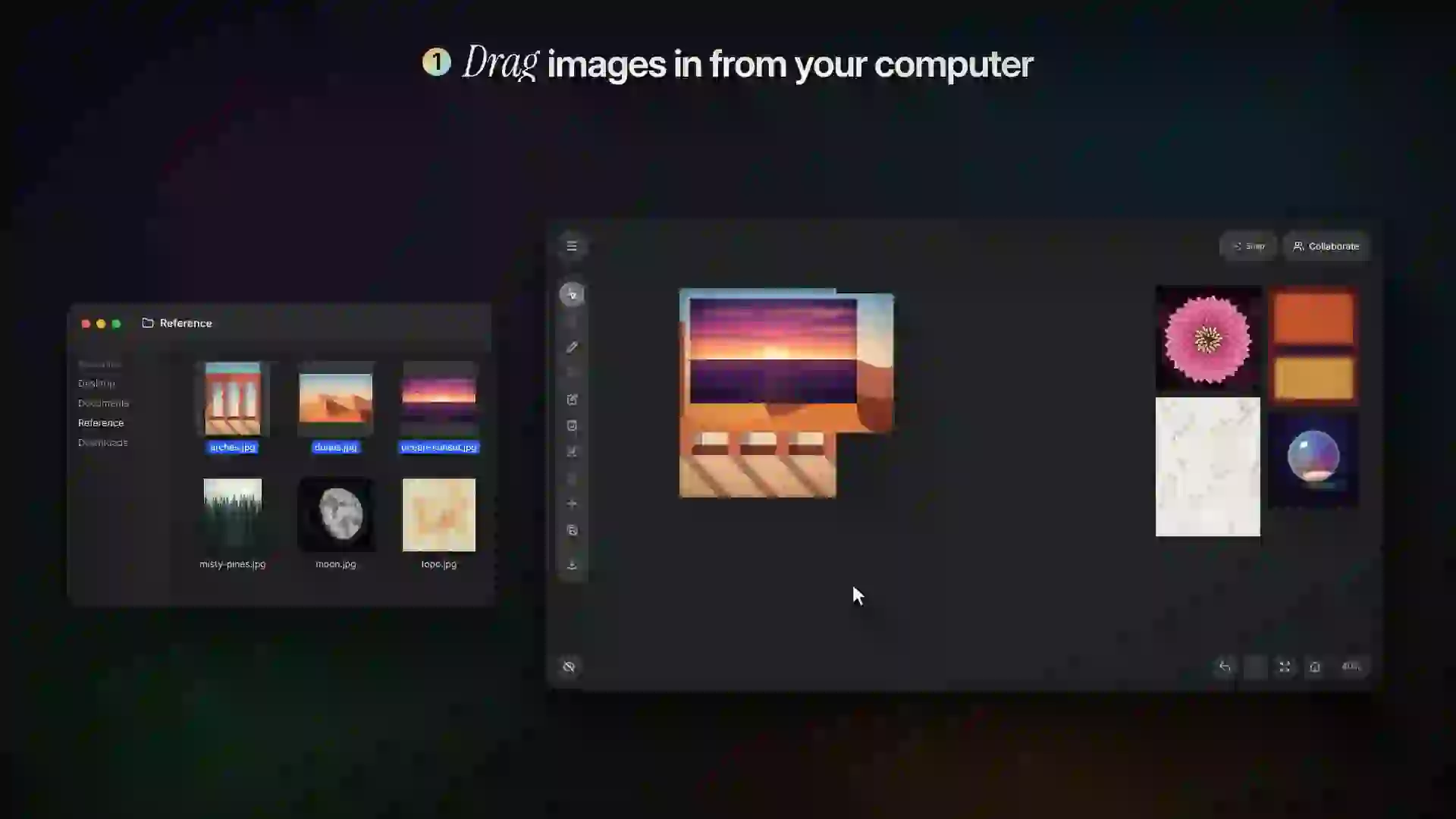 Add images Bring pictures onto a board from your computer or your clipboard.
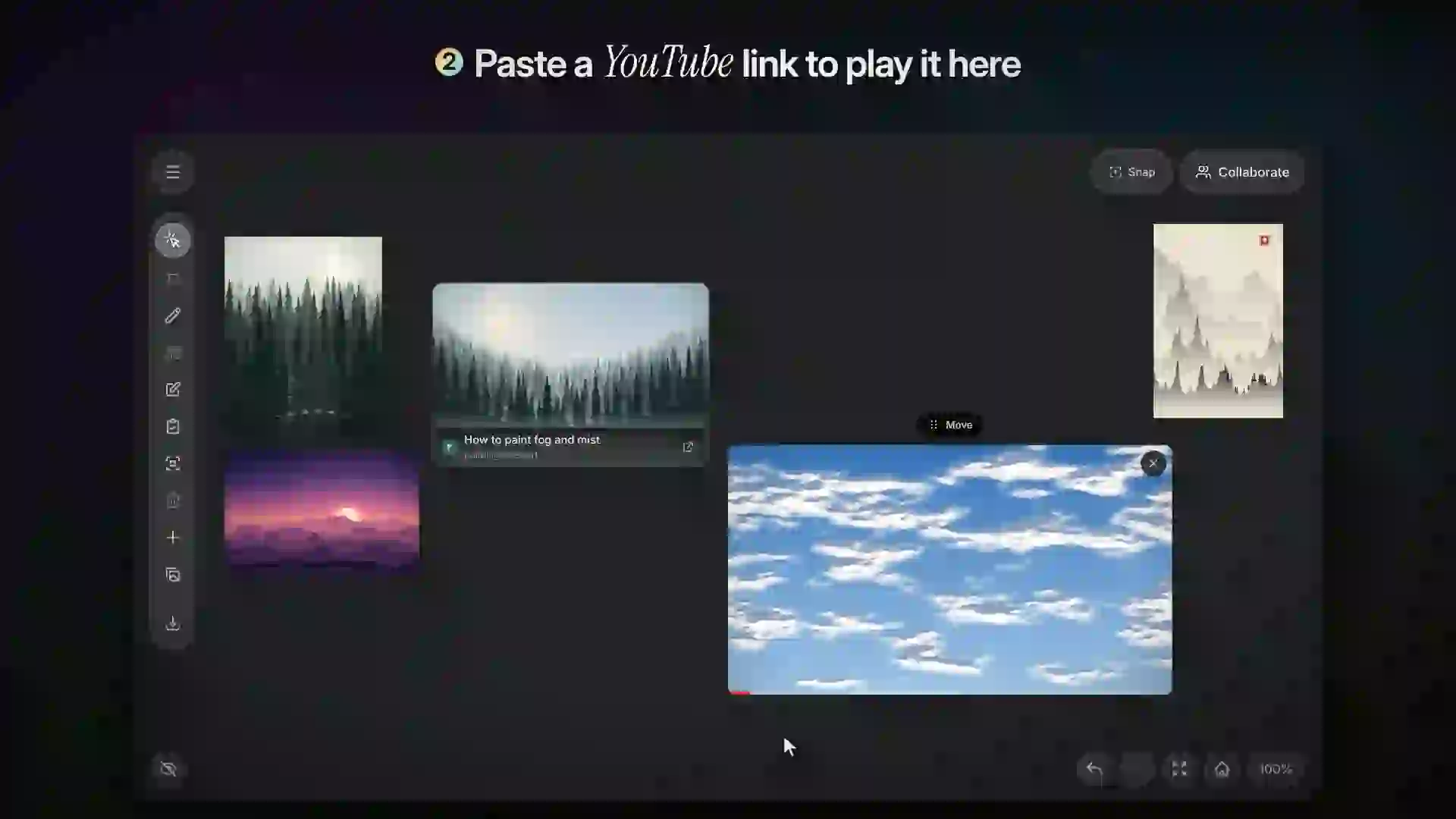 Links and videos Paste a web address and DarkRef turns it into the right thing: a link card, a moving GIF or a video you can play on the board.
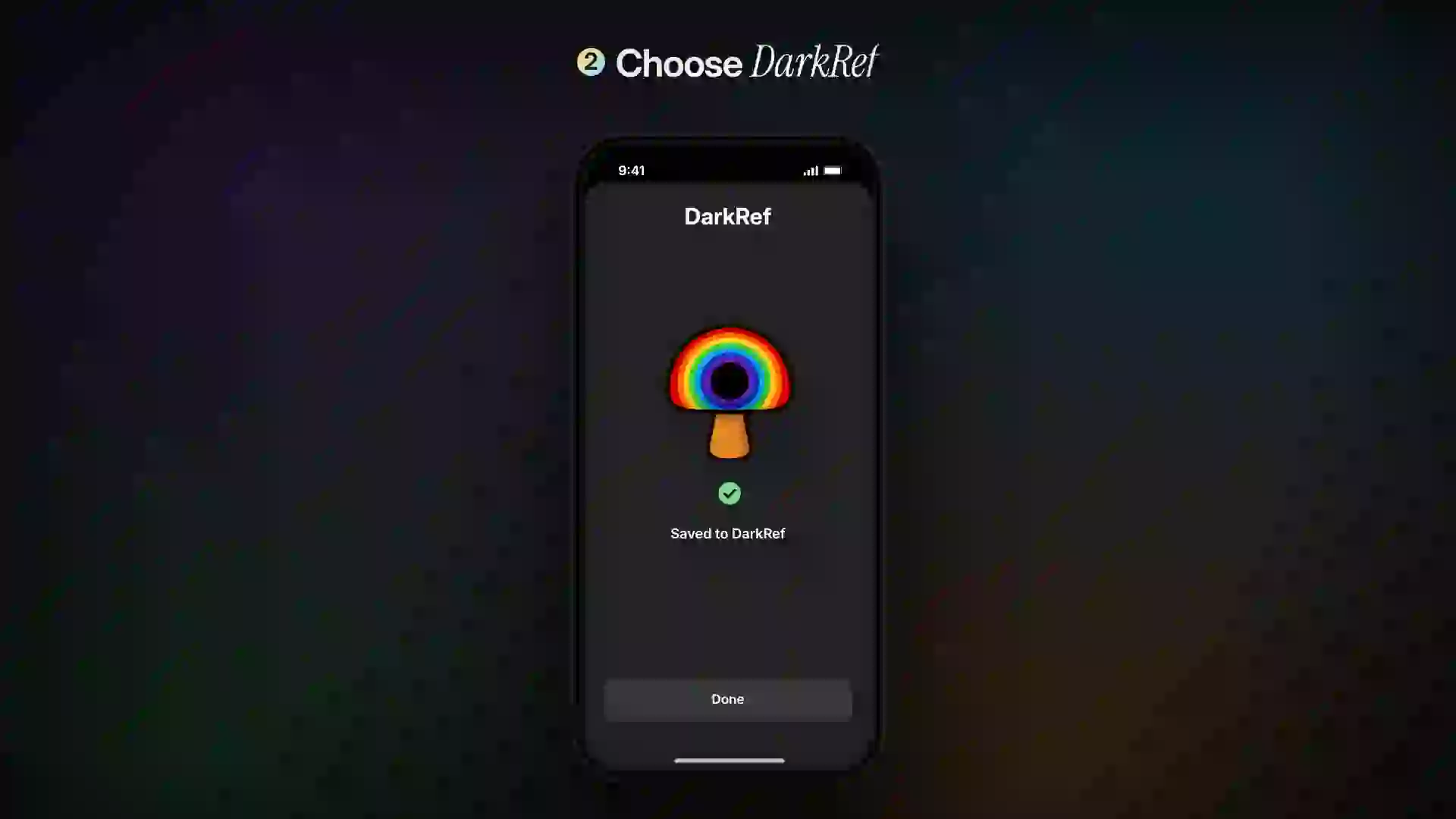 Save from your iPhone or iPad Save pictures and links from Photos, Safari or any other app with the Share button.
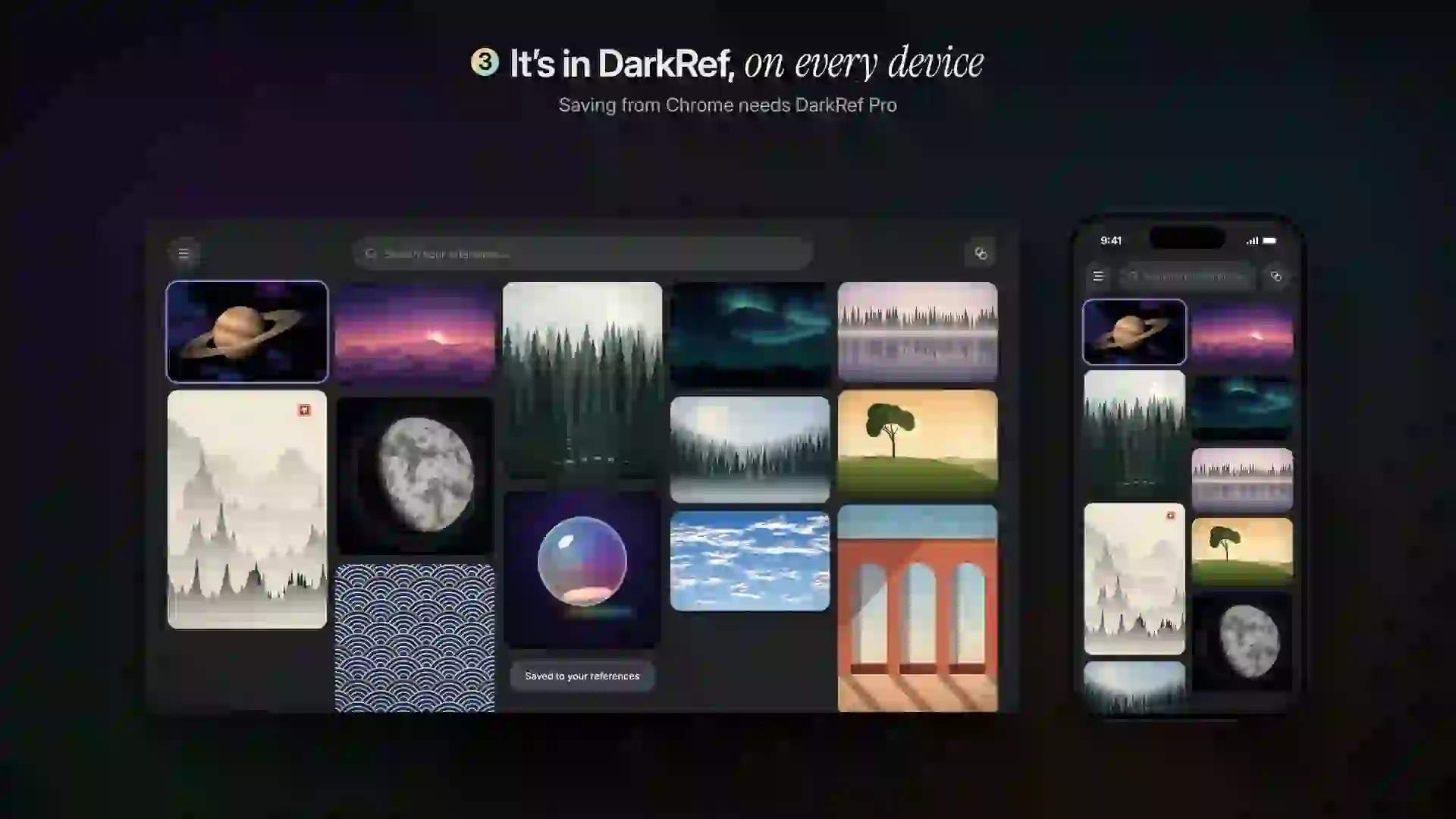 Save from Chrome The DarkRef extension saves images, links and whole pages while you browse.
Lay out your board.
A board is an endless canvas. Move things around, zoom in close, and let DarkRef tidy up for you.
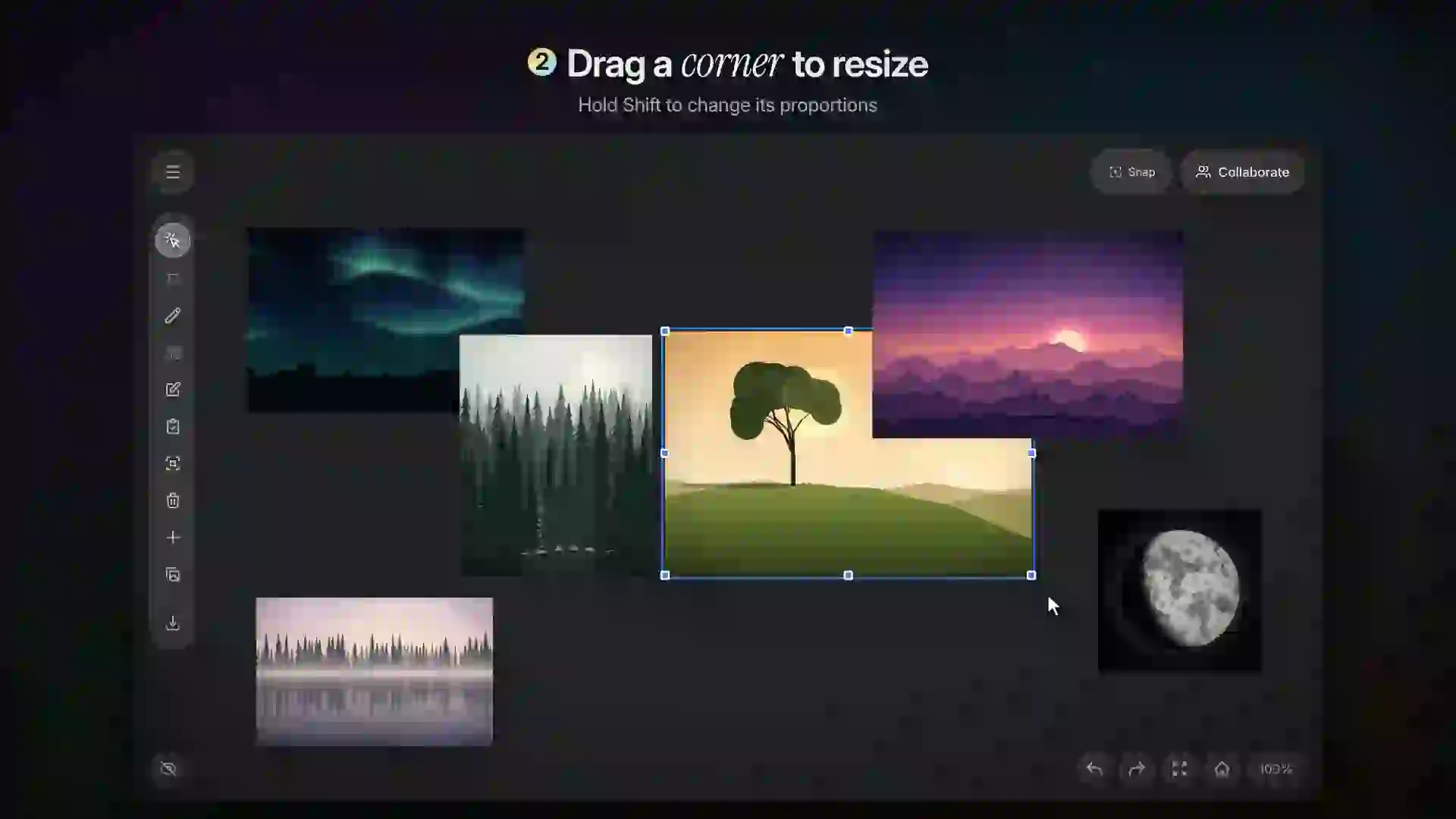 Move and resize Drag anything to move it, and pull a corner to make it bigger or smaller.
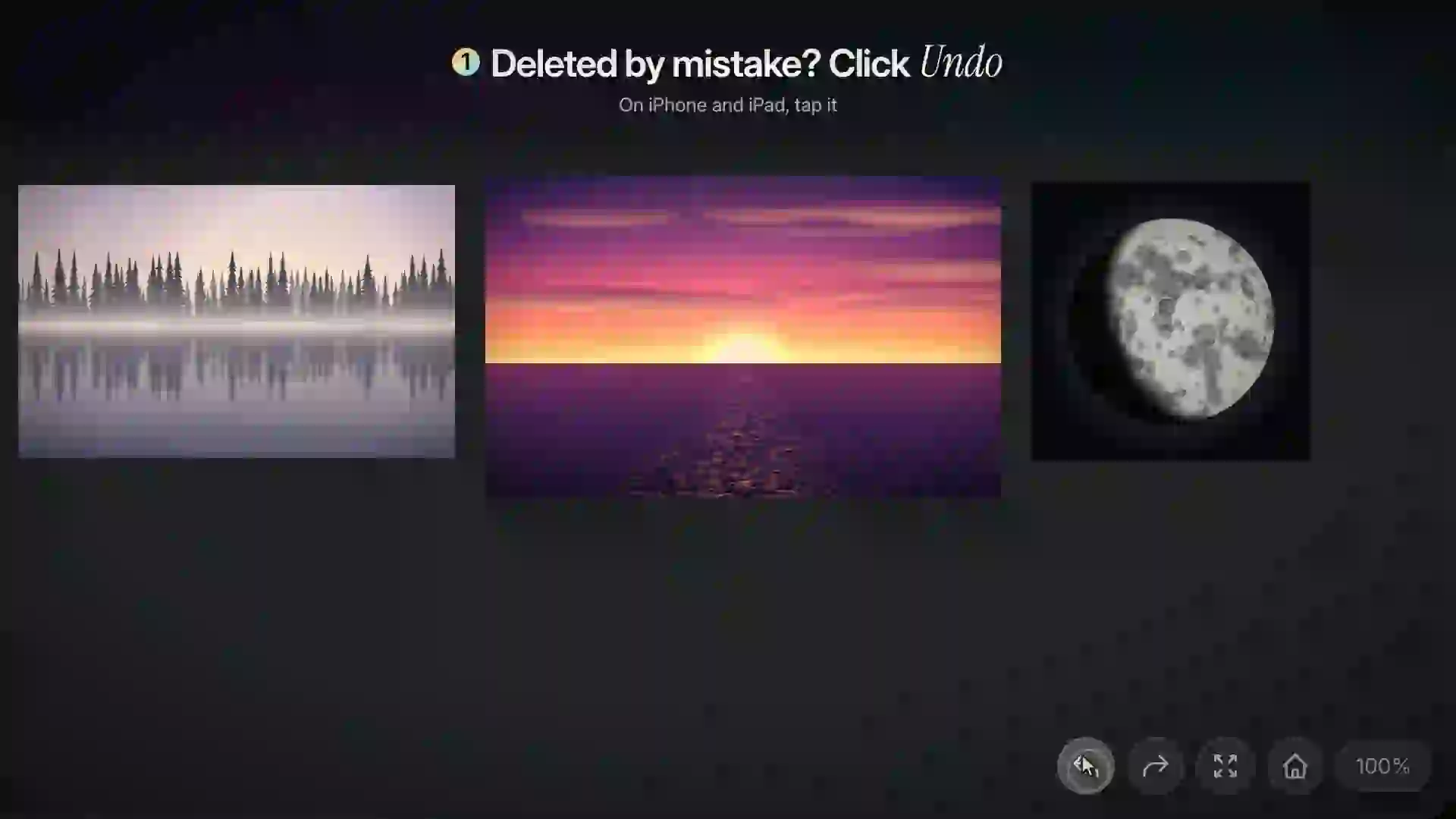 Undo and redo Take back any change on a board, and put it back again if you change your mind.
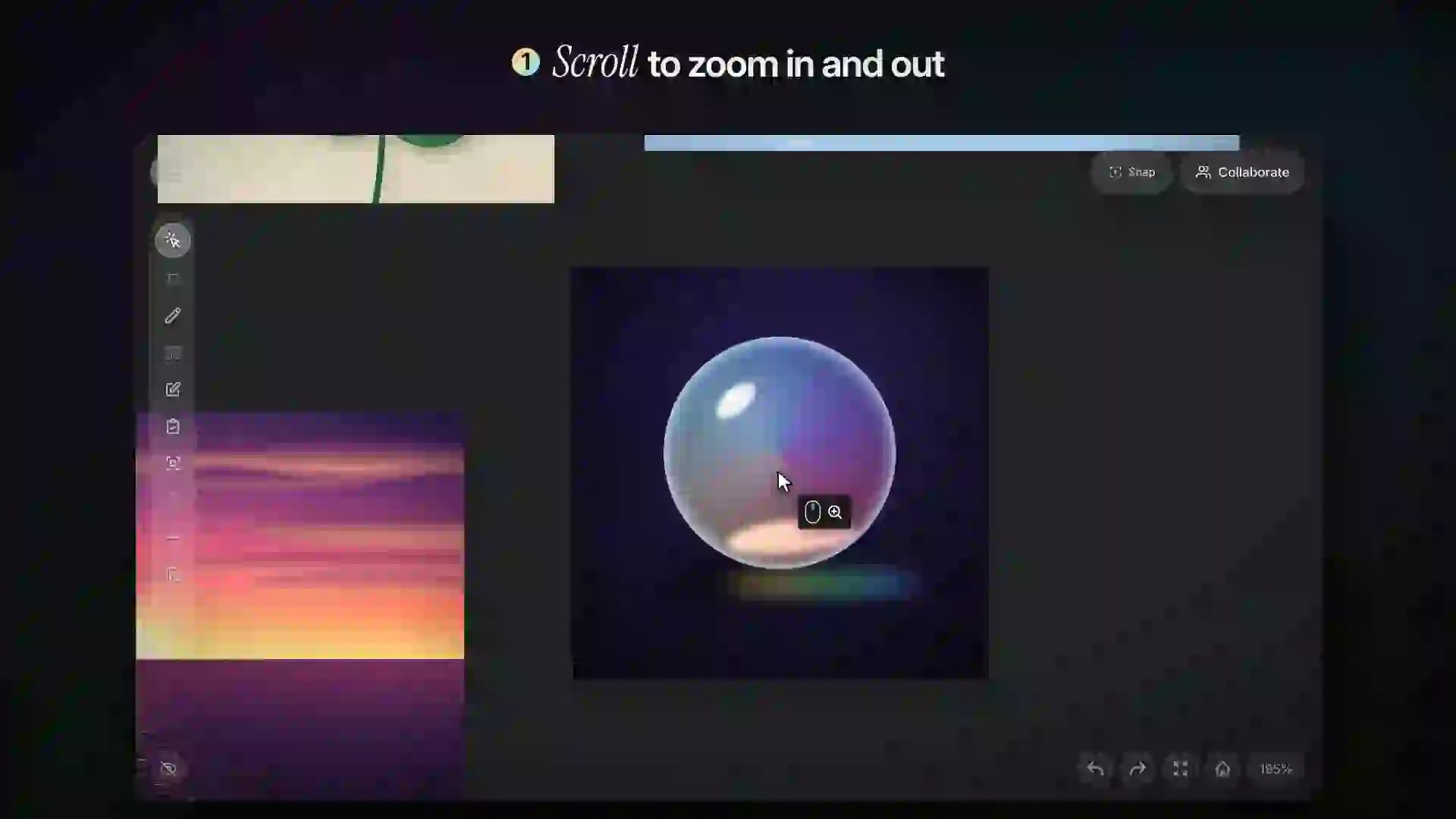 Pan and zoom Move around a board of any size, then jump back to see everything at once.
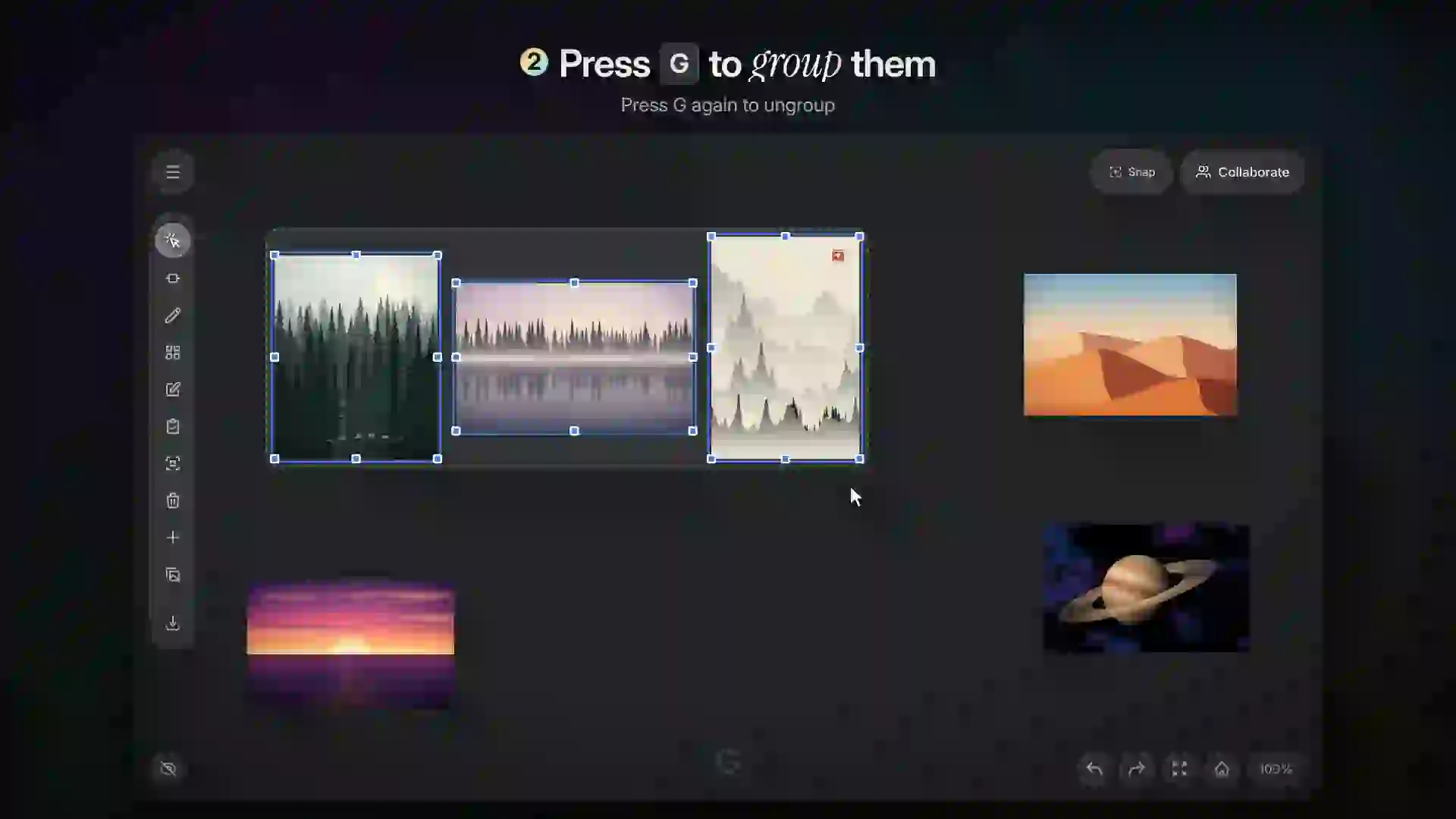 Select and group Pick out several things at once, and group them so they move together.
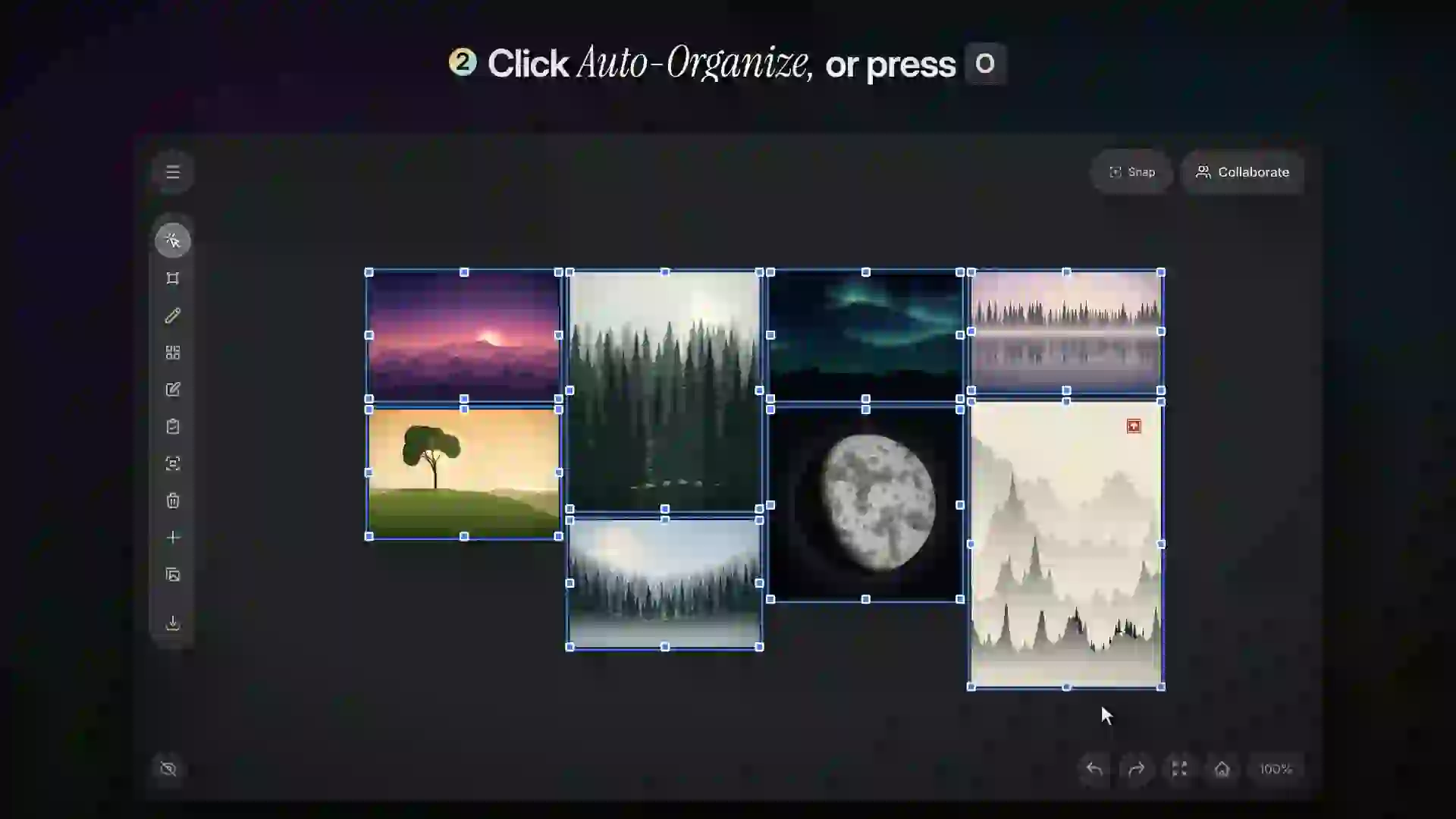 Auto-Organize Turn a messy pile of references into neat columns in one click.
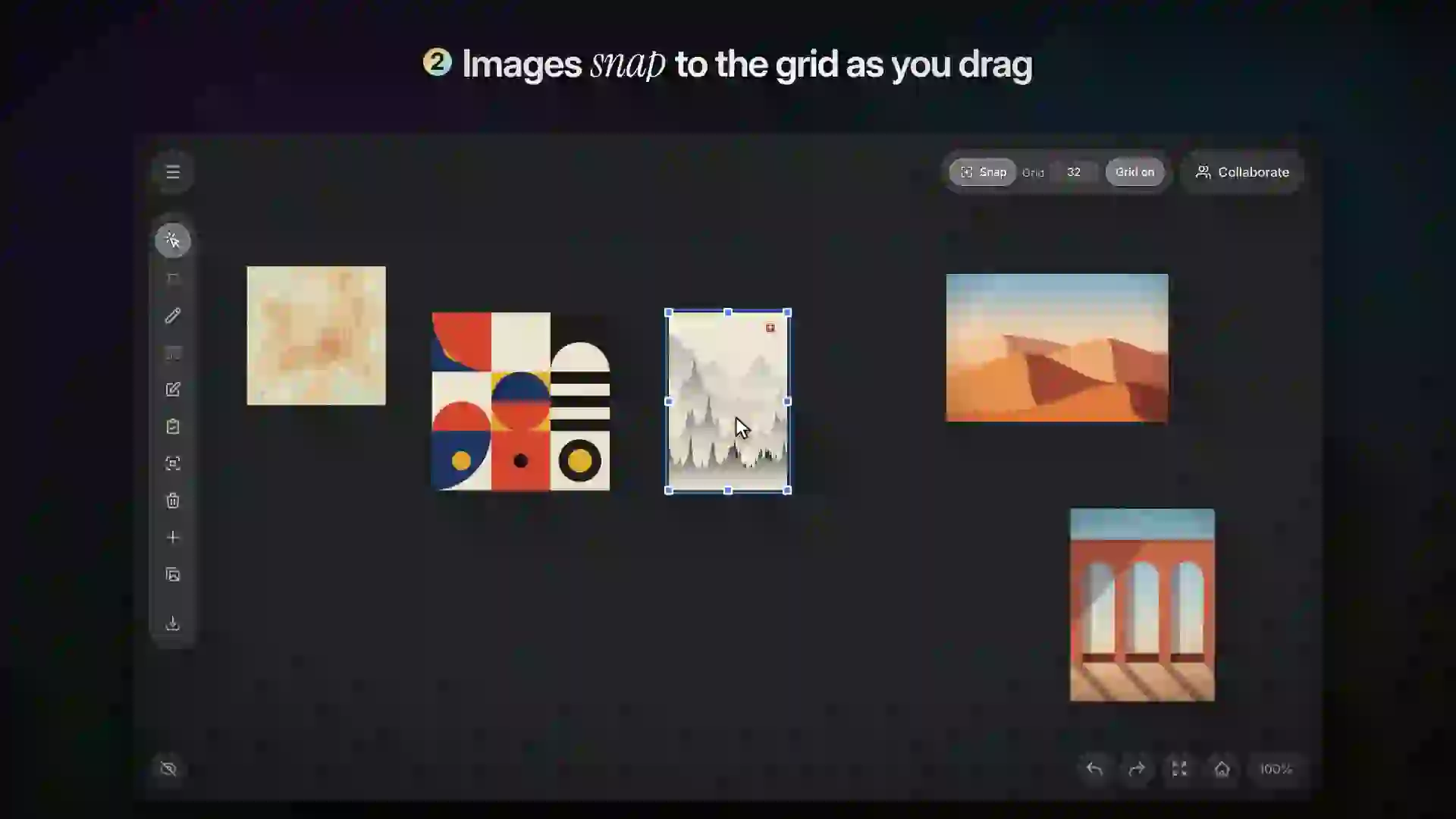 Snap to grid Line things up exactly by snapping them to a grid as you drag.
Mark it up.
Write notes, sketch over your references, link ideas with arrows, and adjust images without touching the originals.
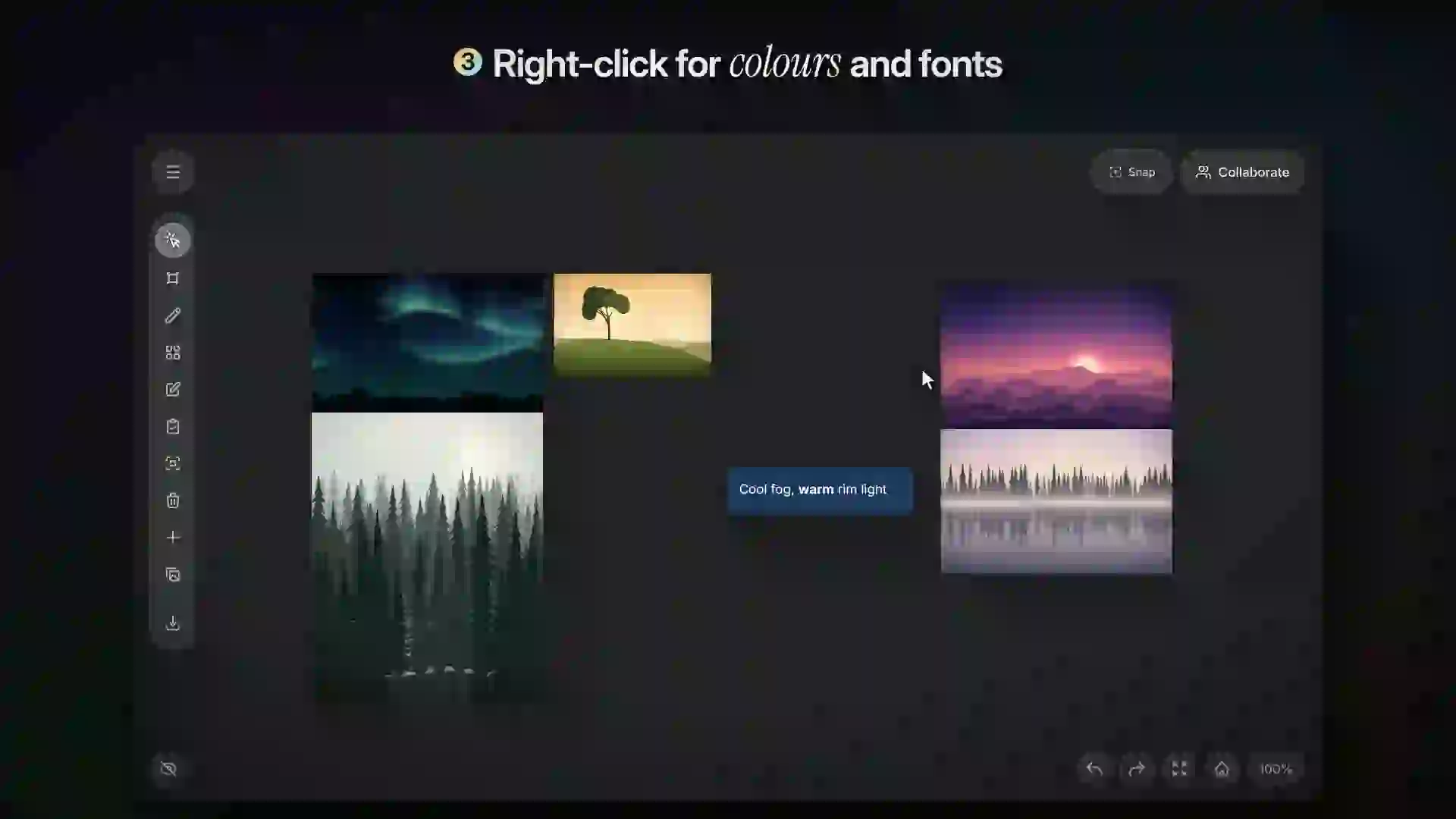 Notes Sticky notes with real formatting, for colour ideas, reminders and to-do lists.
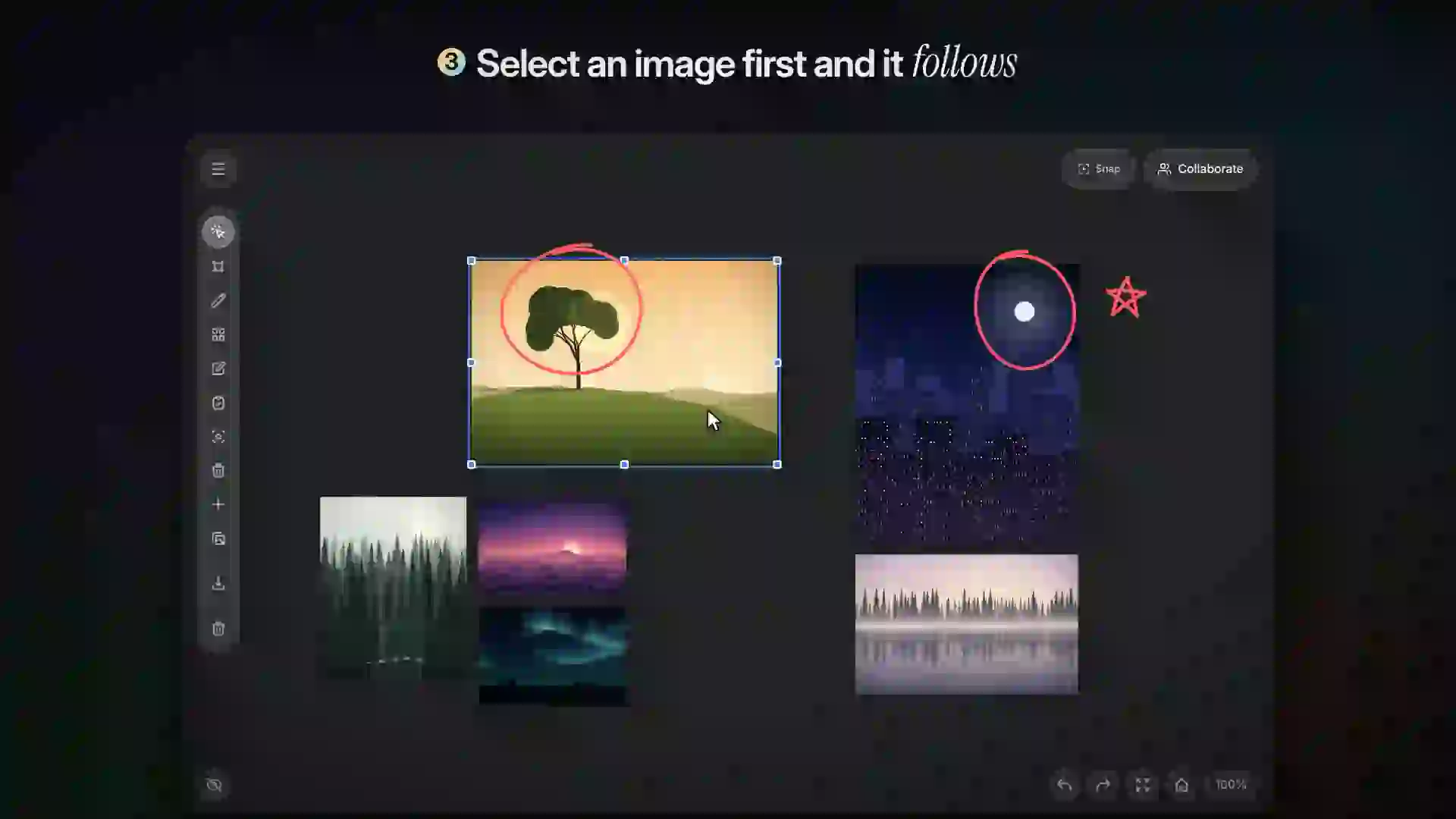 Draw Sketch, circle and underline right on your board.
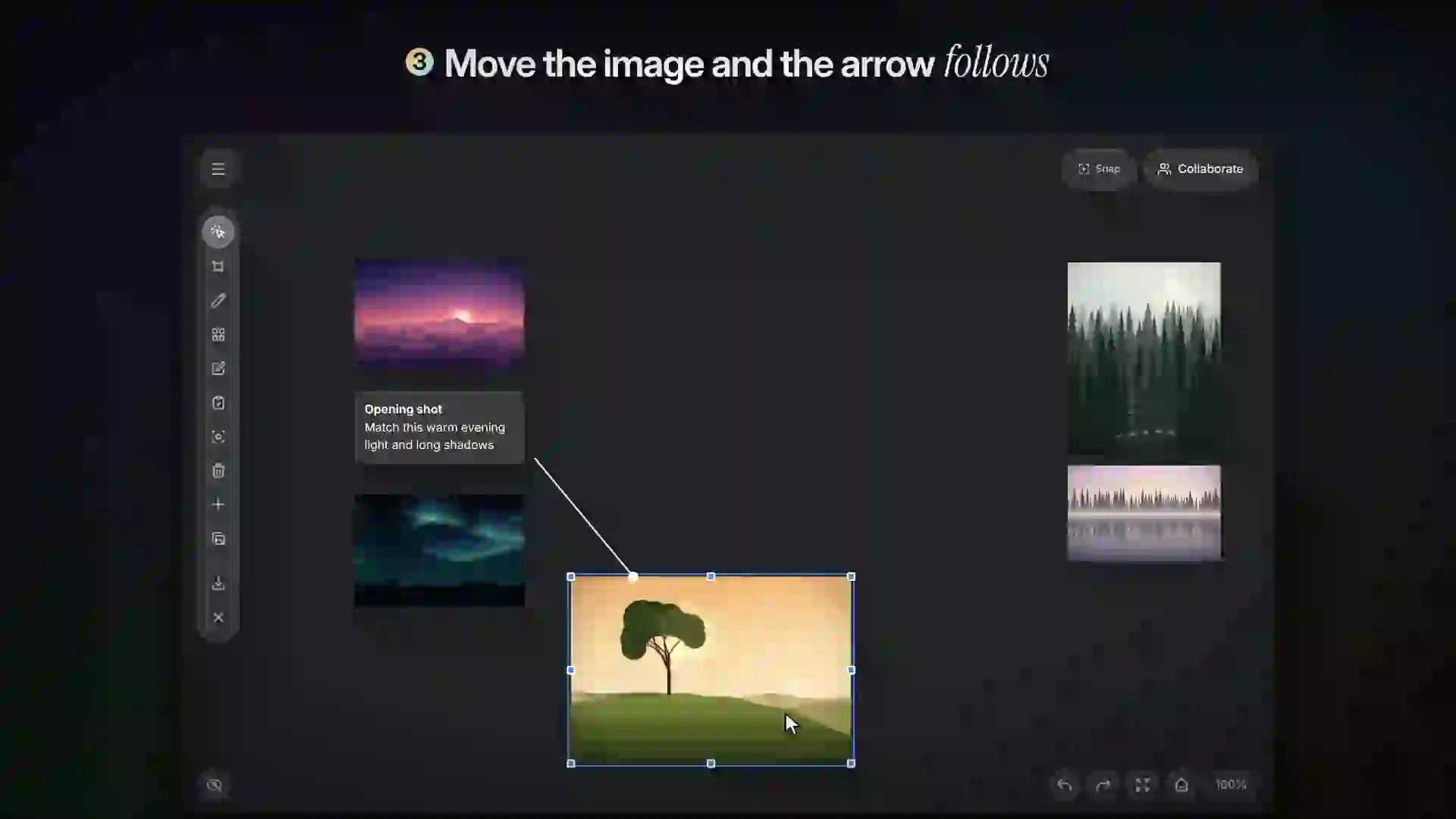 Arrows Connect references with arrows that stay attached when you move things.
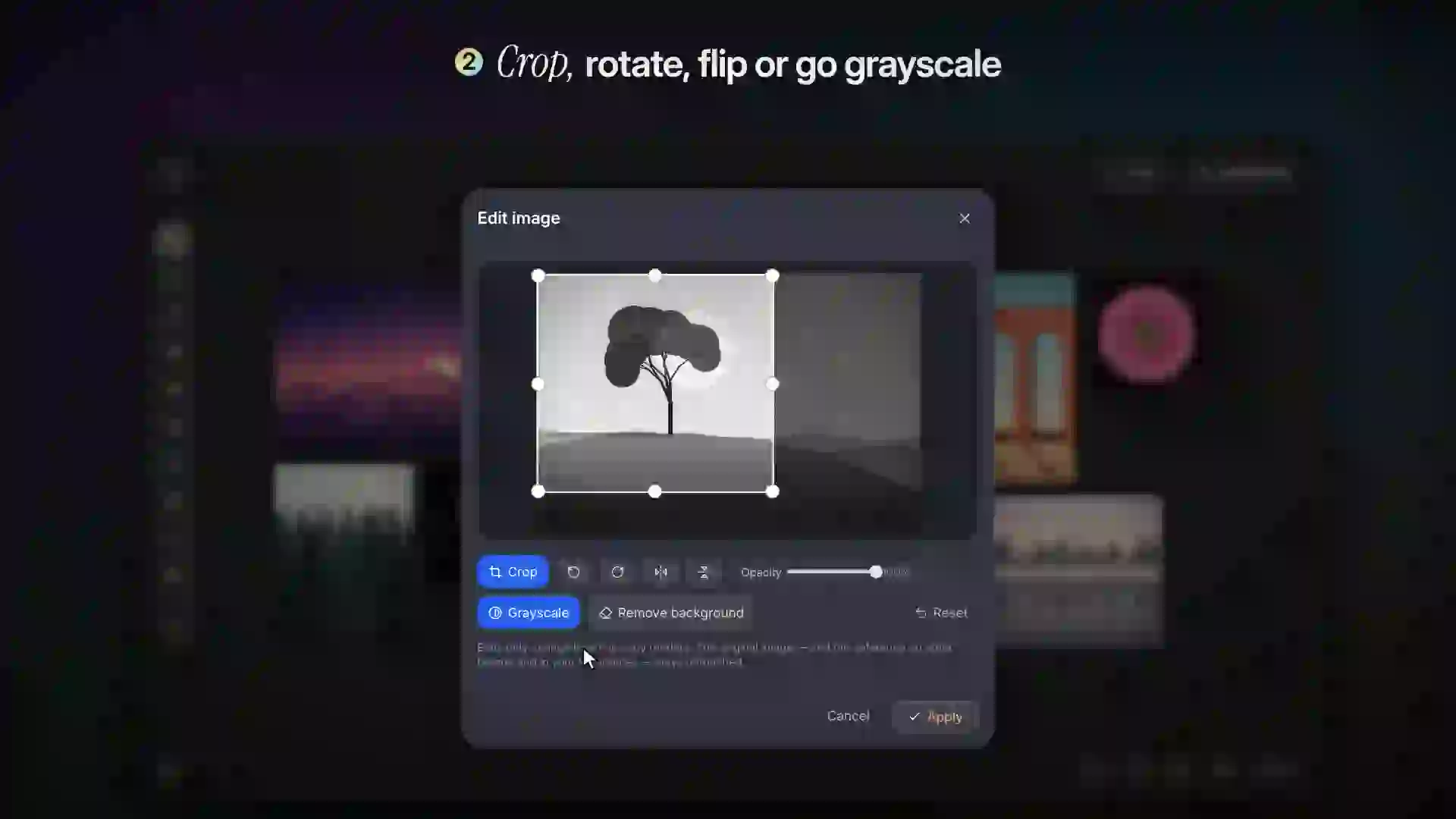 Edit an image Crop, rotate, flip, fade or go grayscale, without changing the original.
Find anything you've saved.
References is your whole library in one place: every image you've added, on any board. It's the first thing you see when DarkRef opens.
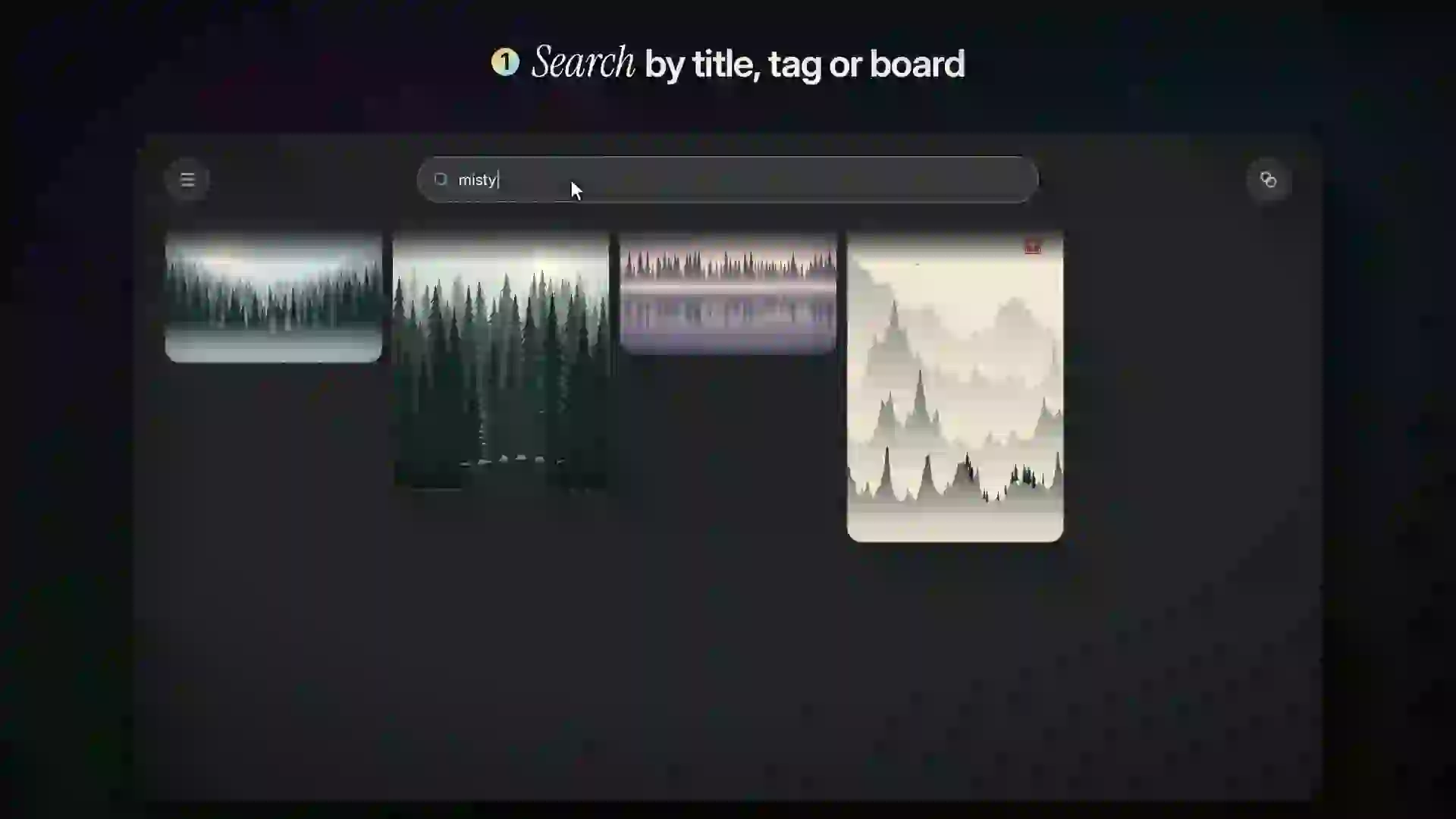 Search your references Find a reference by its title, description, tags, file name or the boards it's on.
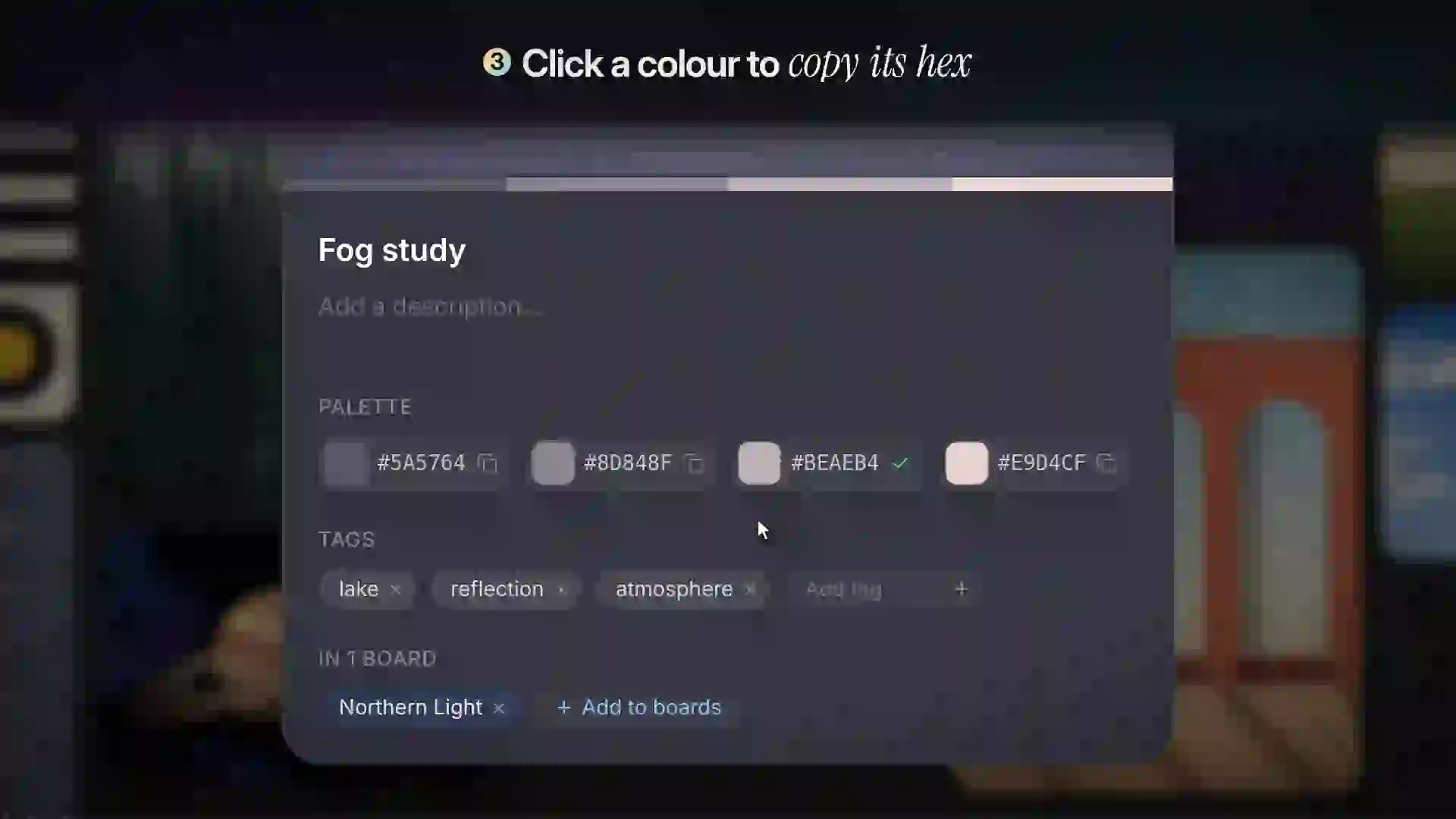 Titles, tags and colours Give references titles and tags so they're easy to find, and grab exact colours from them.
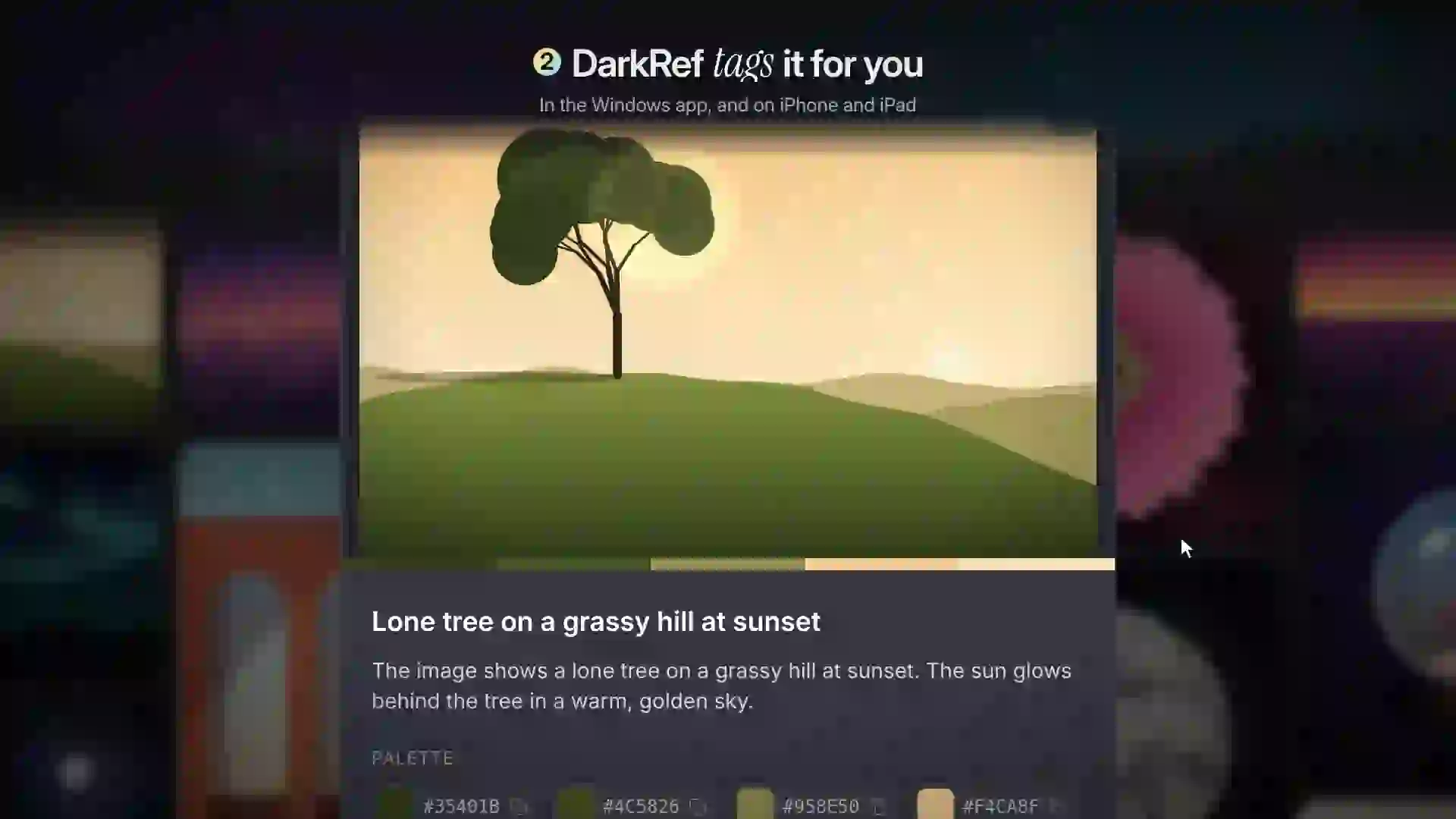 Automatic tags DarkRef gives new references a title and tags for you, so you can find them by what's in them.
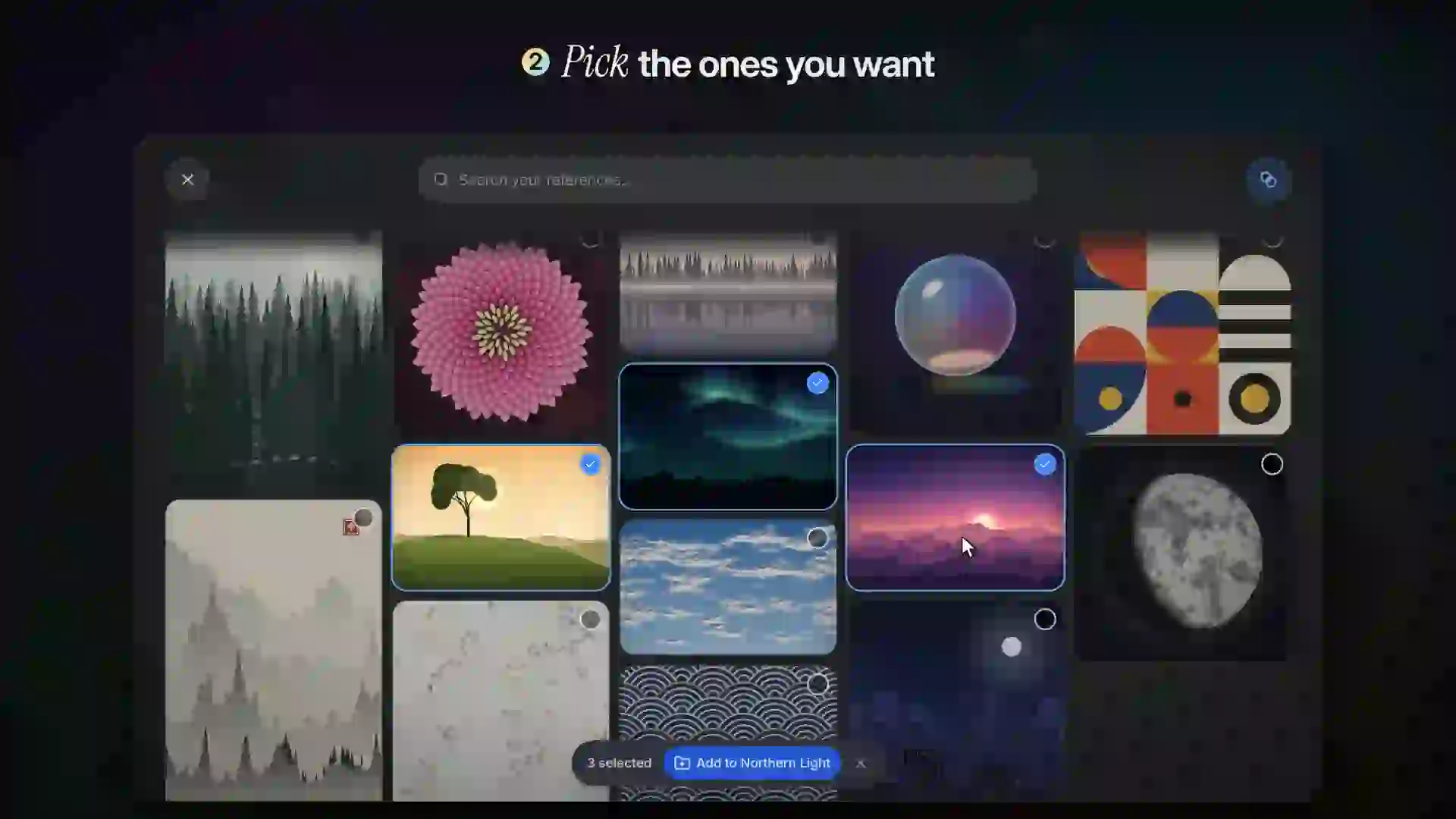 Add from your references Put references you've already saved onto the board you're working on.
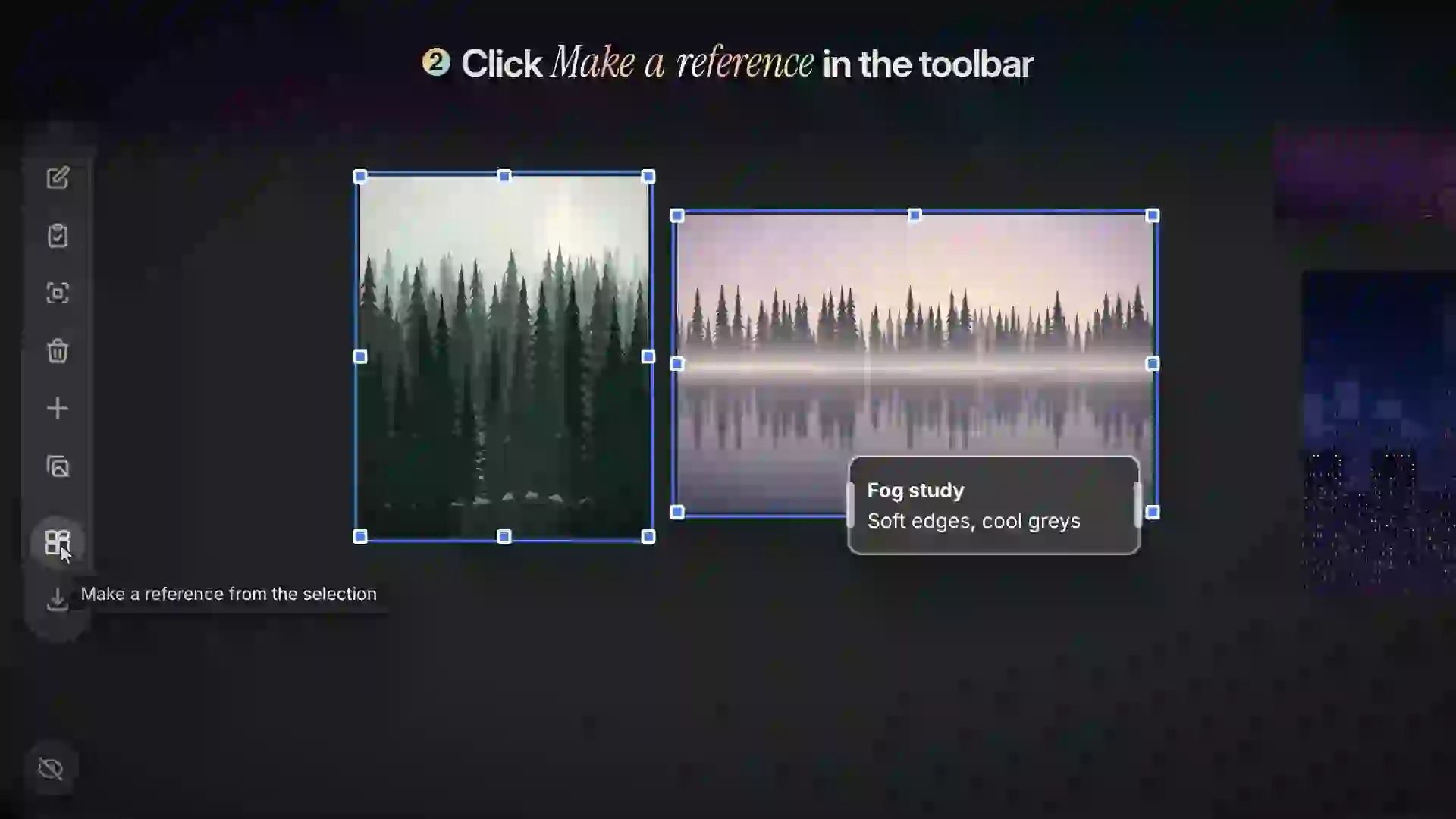 Make a reference from a selection Turn a group of images and notes on a board into one new picture in your References.
Keep your boards in order.
Make a board for each project, file them in folders, link them together, and save or export them when you're done.
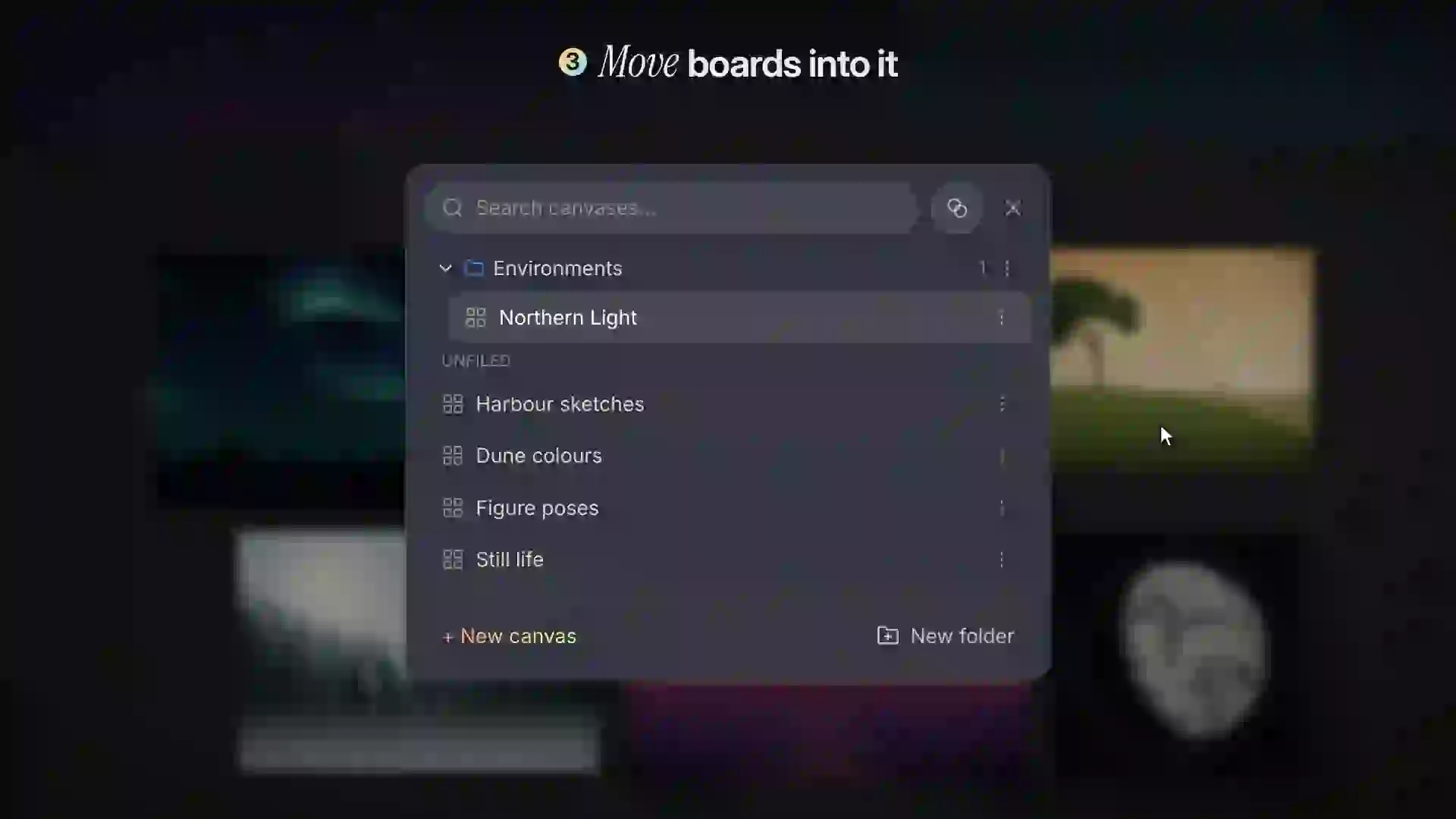 Boards and folders Make boards (the app calls them canvases), file them in folders, and switch between them.
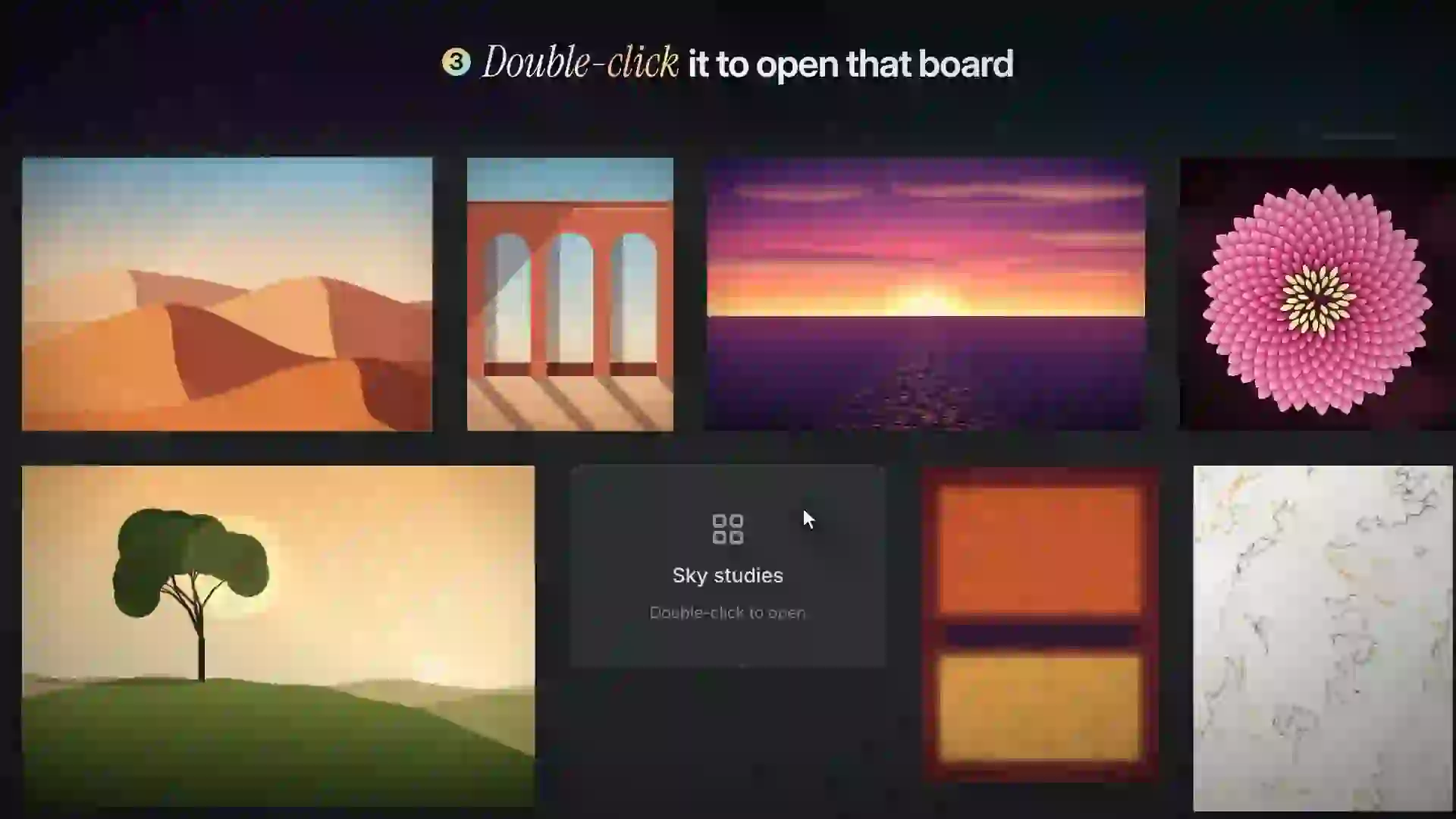 Link to another board Put a card on a board that opens another of your boards, to jump between related projects.
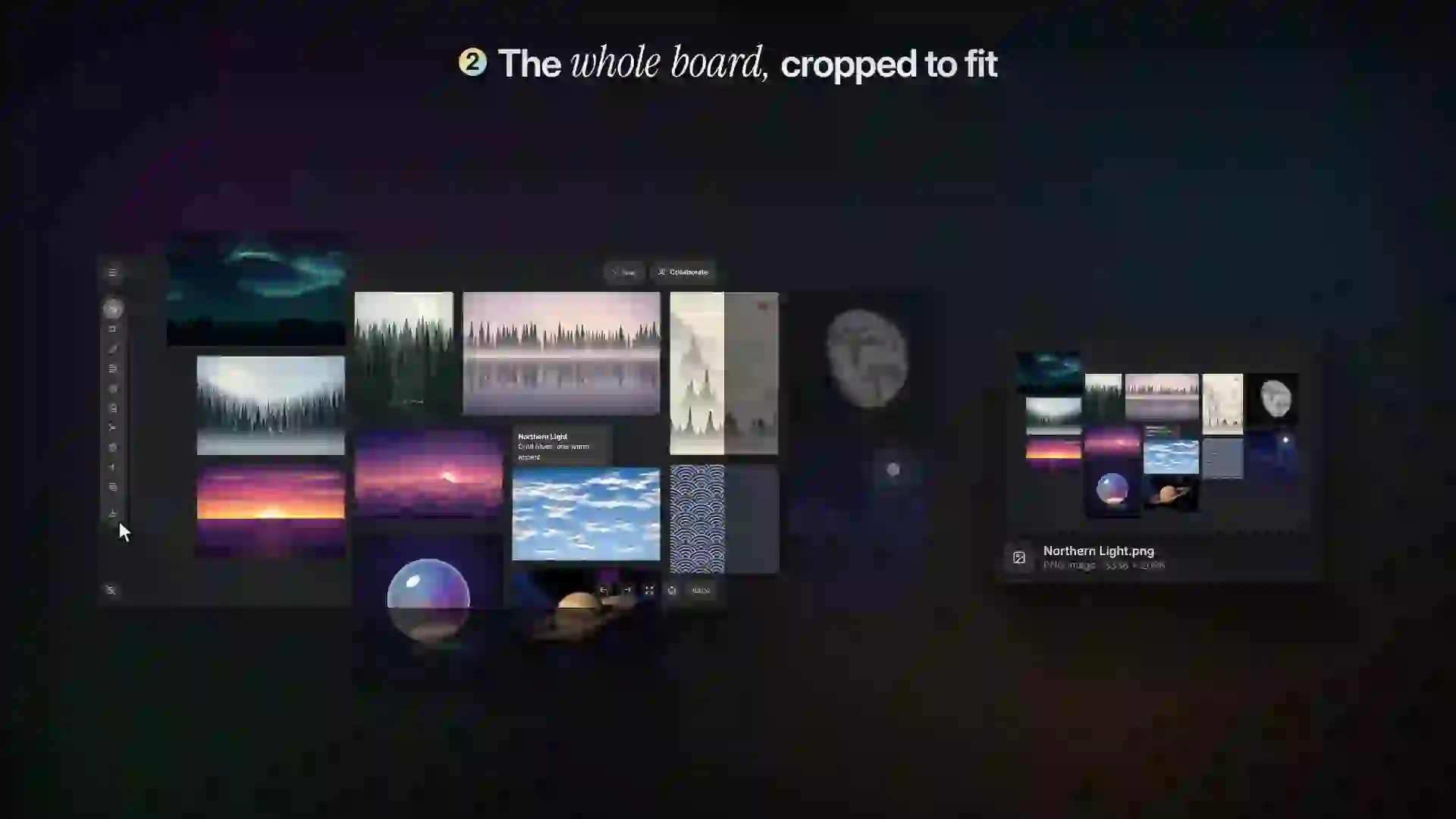 Export as PNG Save a whole board as one picture, to share it or print it.
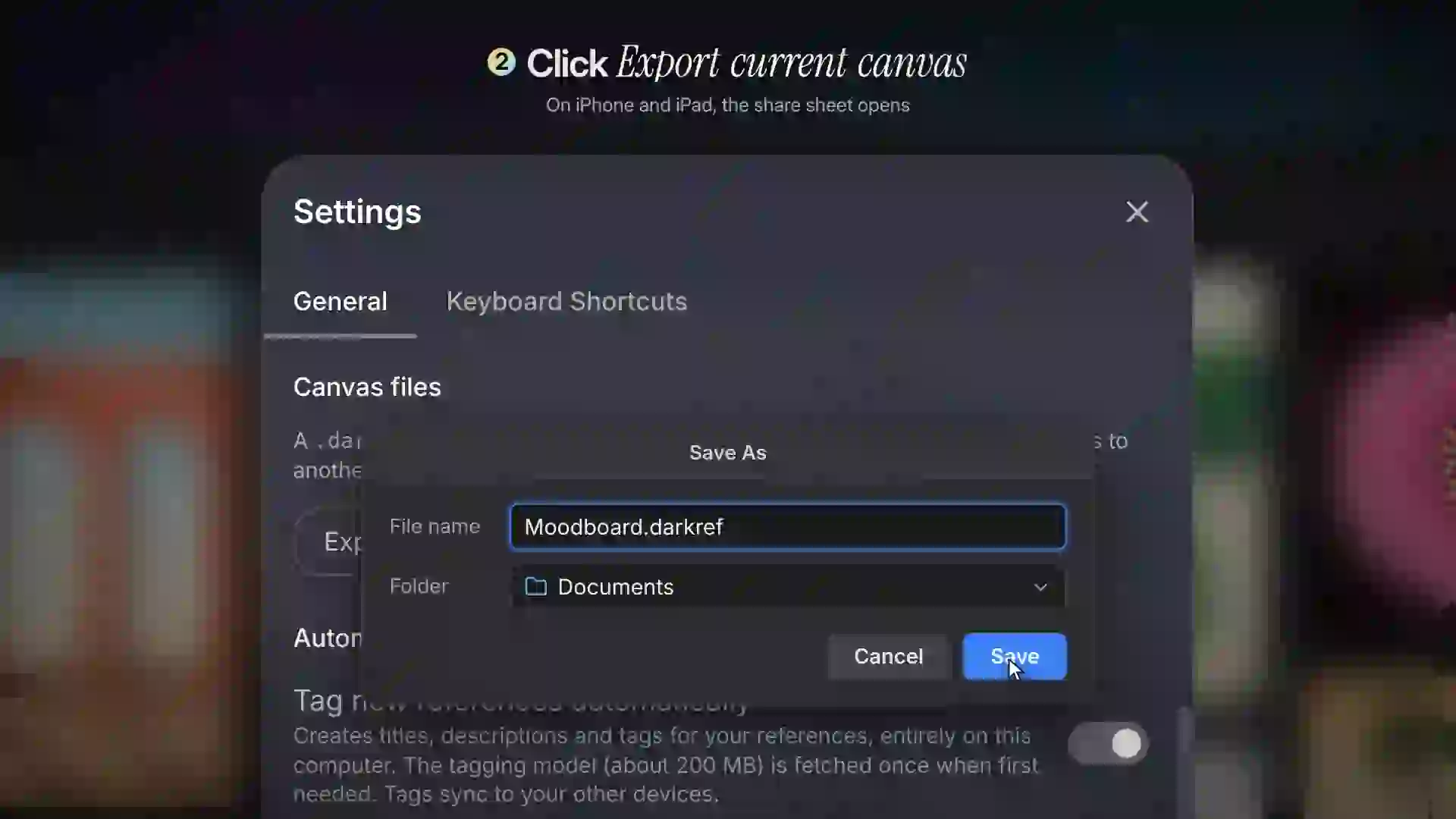 Save a board as a file Keep a board and its images in one file, to back it up or open it on another device. No account needed.
Work across devices, and with other people.
With DarkRef Pro your boards follow you to every device, and you can open a board to your team in real time. Anyone you invite can join for free.
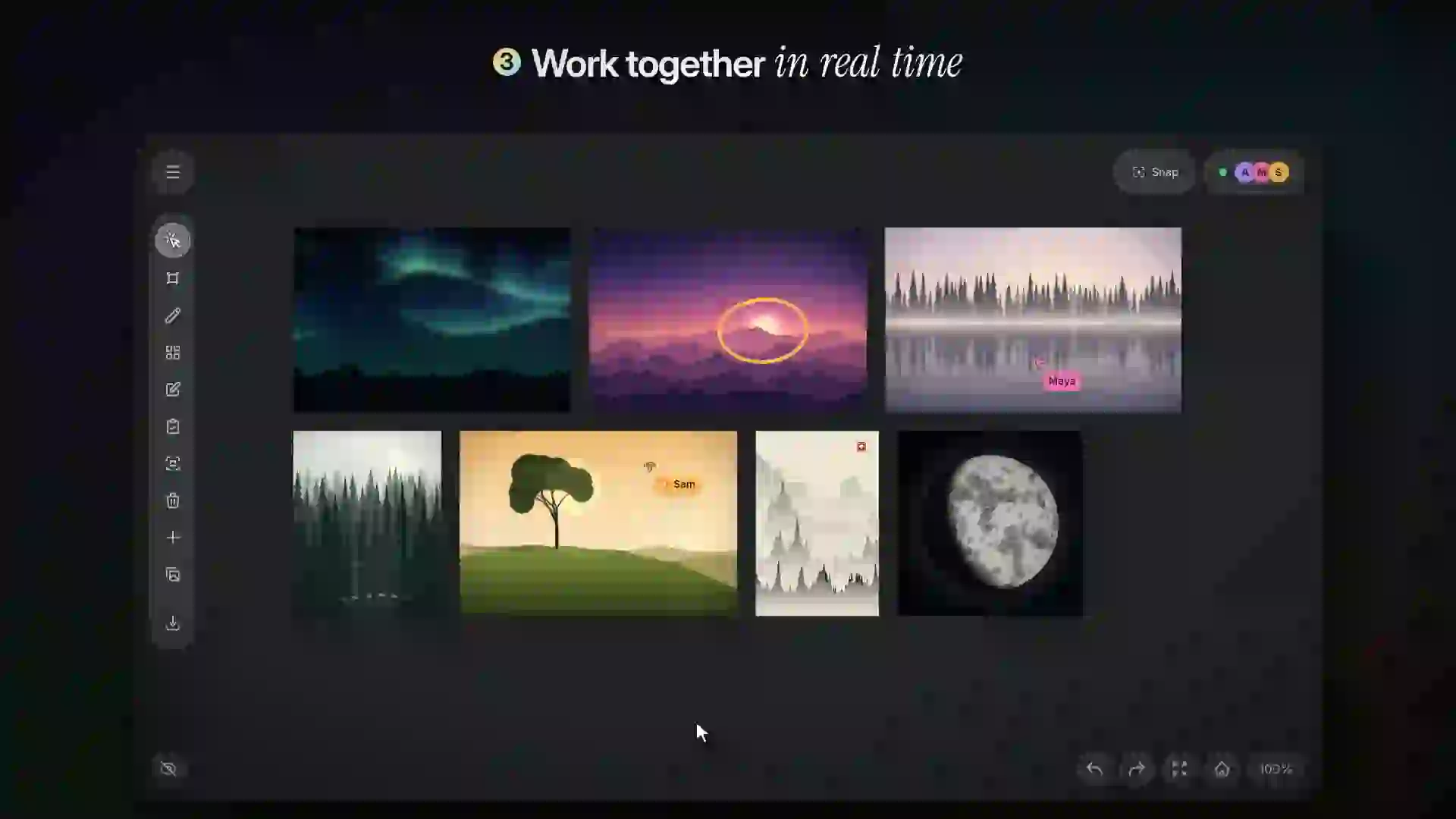 Collaborate live Share a board with your team and work on it together, with everyone's cursors on screen.
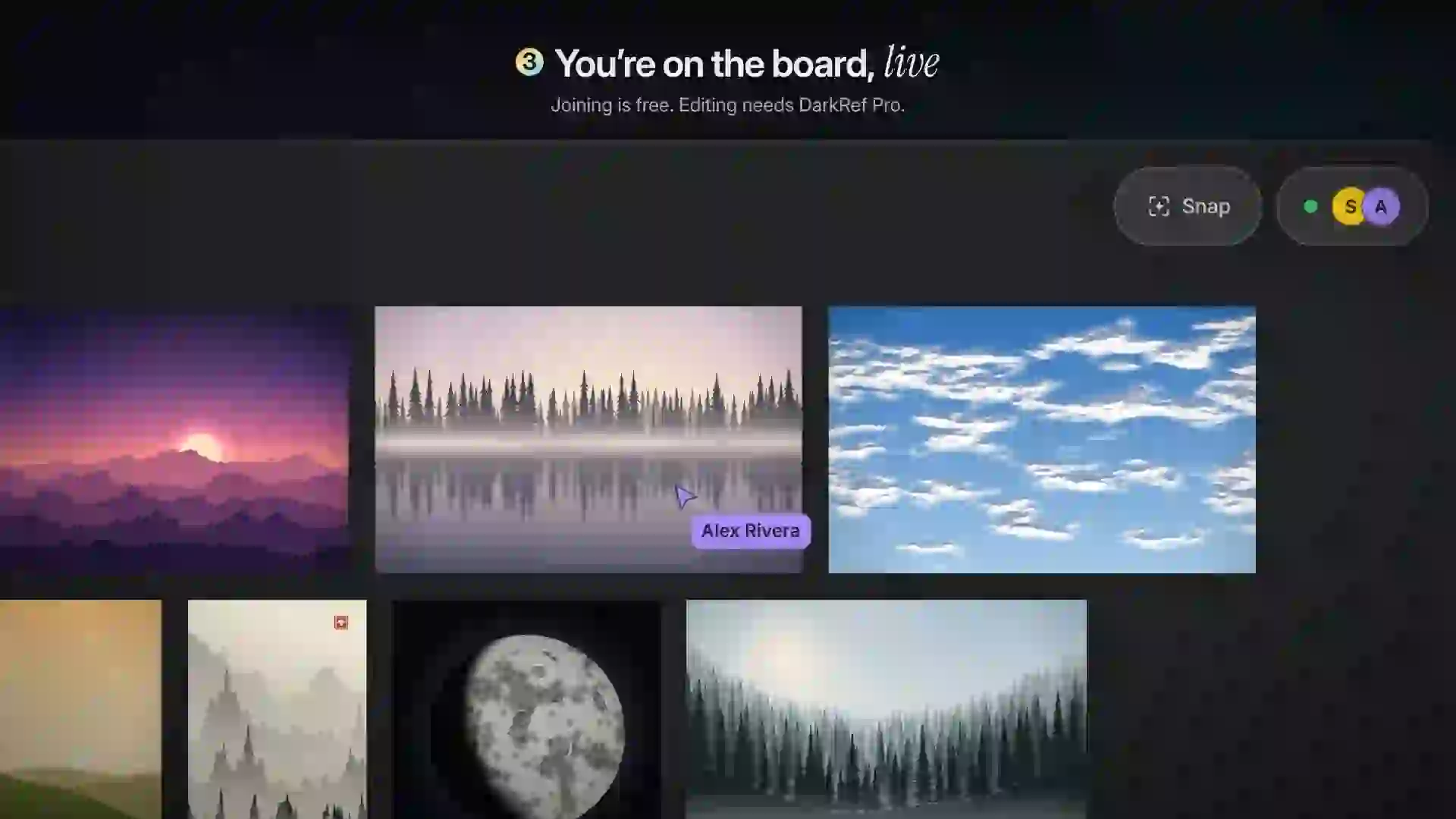 Join a live board Open a board someone has shared with you, and see everyone's changes as they happen. Joining is free.
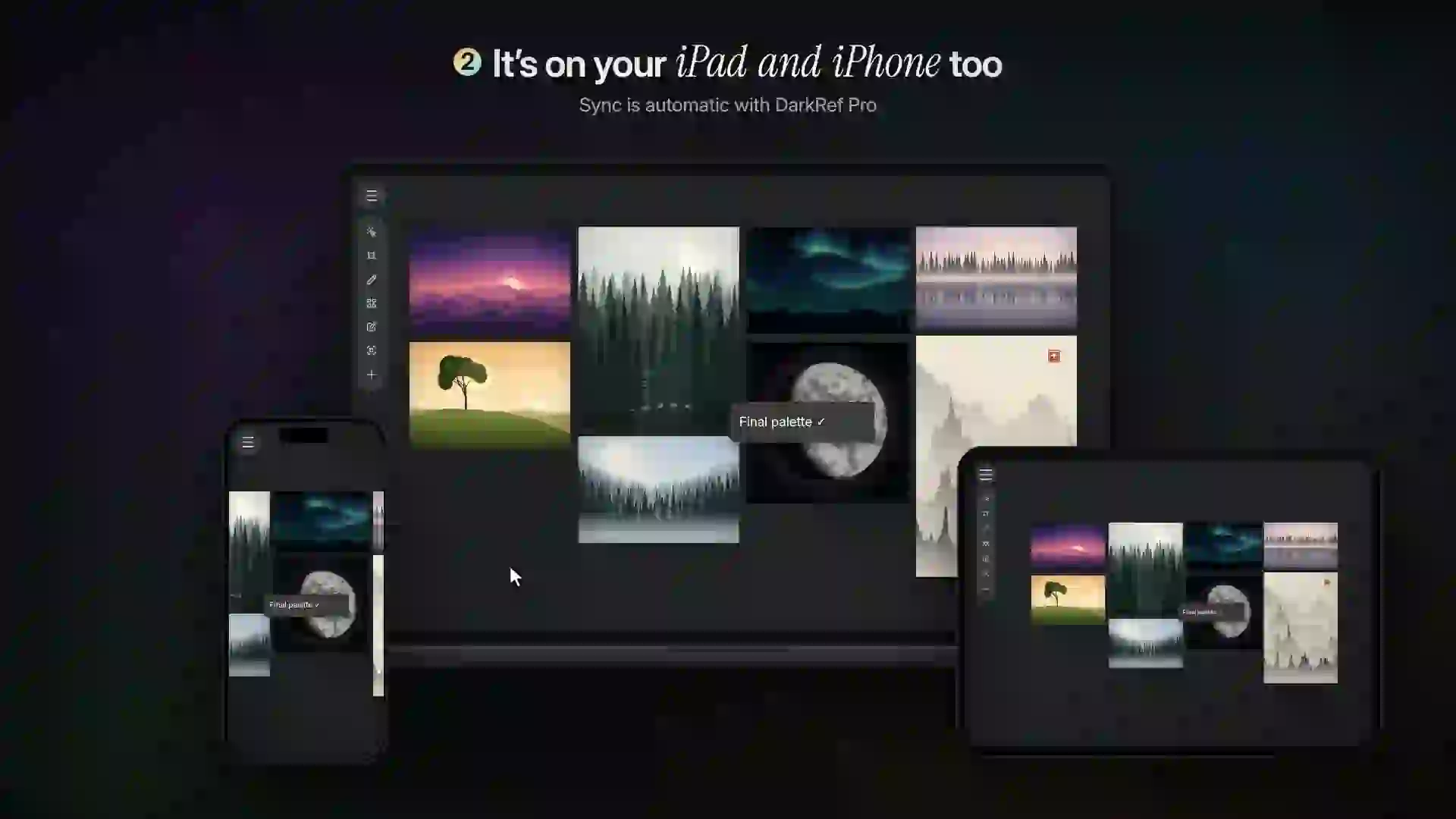 Sync across devices Your boards, references, notes and tags, the same on every device you sign in on.
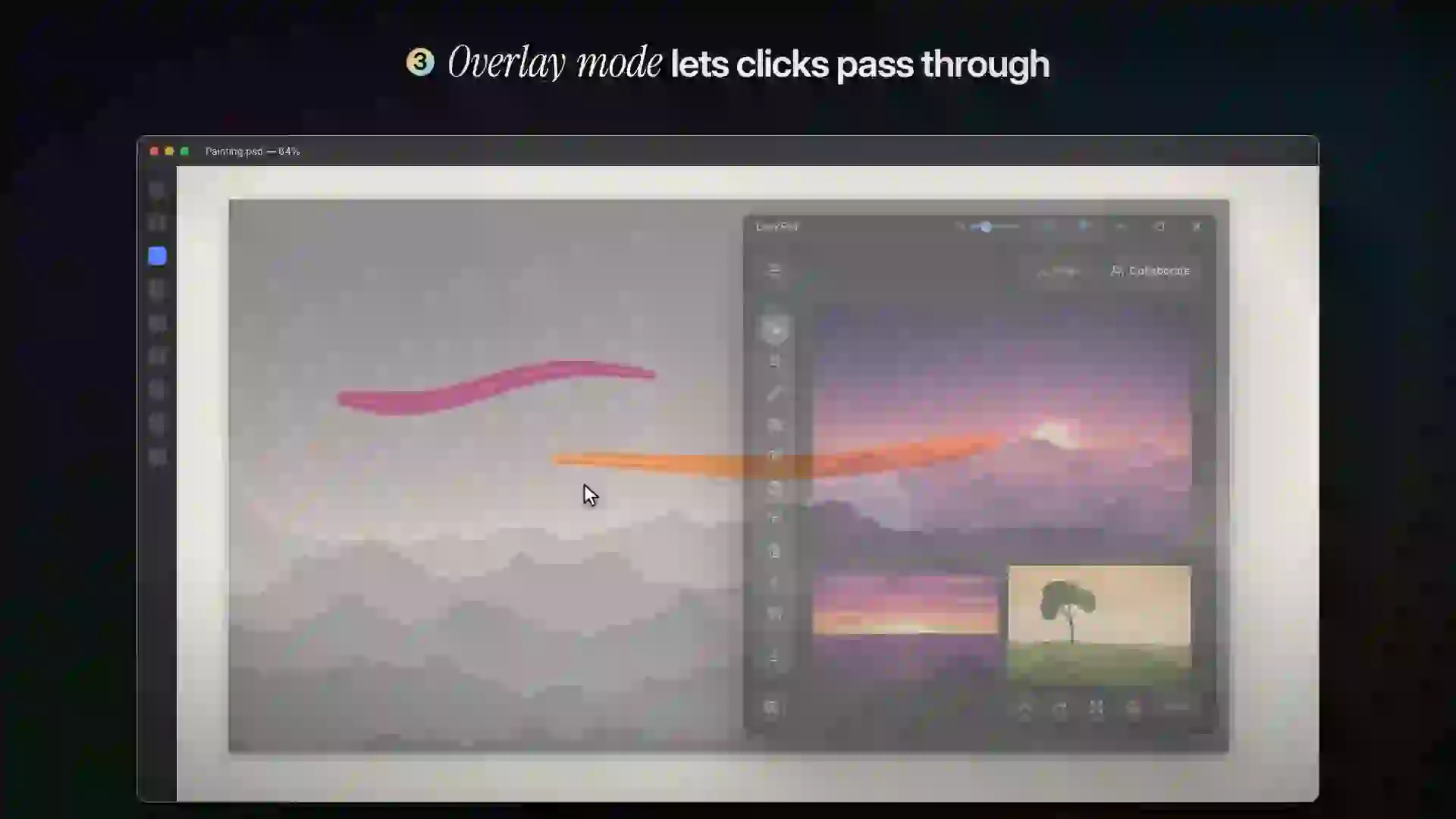
Keep references beside your work.
On Windows and Mac, DarkRef can float over the app you're painting in.
Keyboard shortcuts.
On a Mac, use ⌘ where it says Ctrl/⌘. Settings in the app has the full list too.
- V
- Select tool
- D
- Draw
- A
- Arrow
- N
- Add a note
- O
- Auto-Organize the selection
- G
- Group or ungroup the selection
- Shift+GorU
- Ungroup
- Ctrl/⌘+A
- Select everything
- Esc
- Clear the selection
- DeleteorBackspace
- Delete the selection
- Ctrl/⌘+Z
- Undo
- Ctrl/⌘+Y
- Redo
- Ctrl/⌘+V
- Paste an image, link or note
- Ctrl/⌘+C
- Copy the selected note
- Shift+H
- Hide or show the toolbars
- Ctrl+Enter
- Finish editing a note
We’re happy
to help.
This guide describes the latest version of DarkRef, and may not always be up to date. Features, plans and prices can change between updates, and what the app or store shows when you buy is what applies. Spotted something out of date? Let us know.